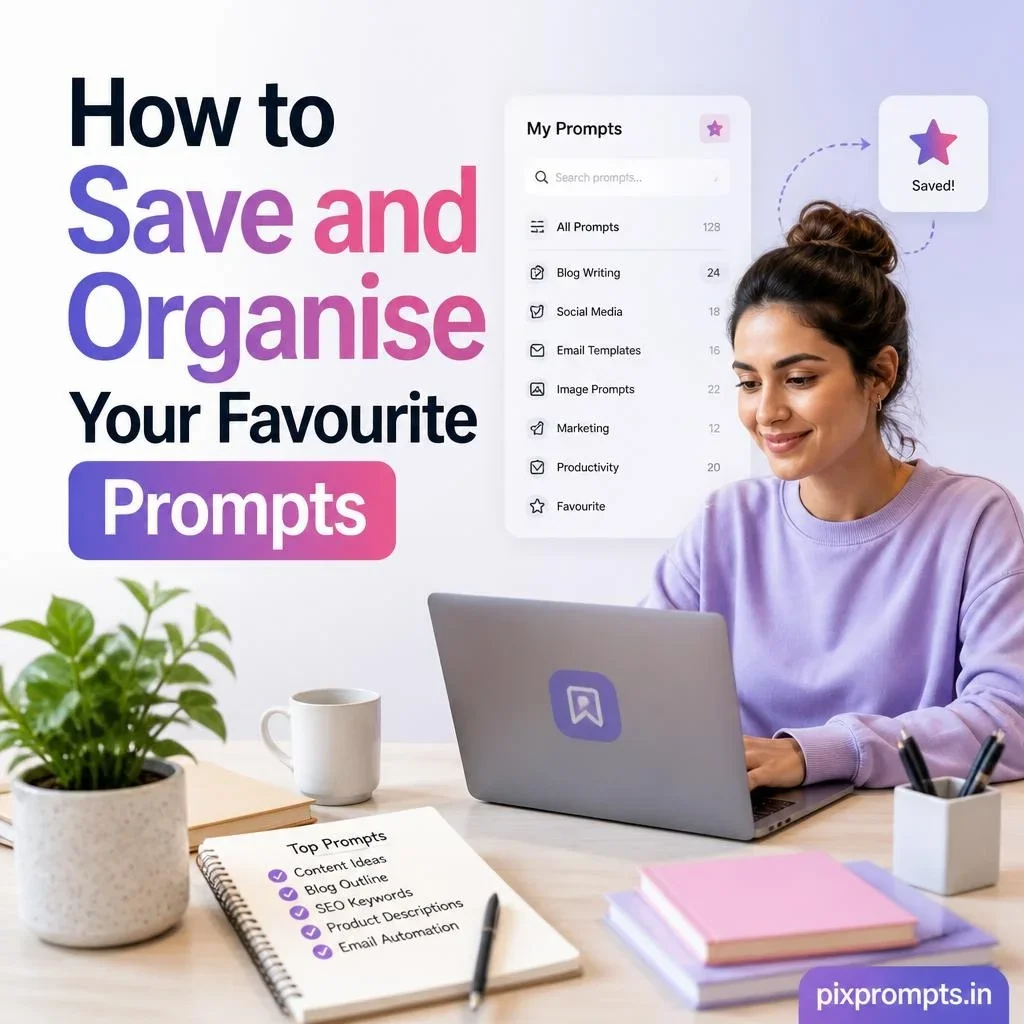
If you use AI tools regularly, you have probably lost a great prompt at least once. You remember creating an amazing image weeks ago, but you cannot recall the exact words. A personal prompt library solves this problem by keeping your best prompts organised and easy to reuse.
This guide shows you how to build a simple, practical prompt library using free tools like a notes app, Google Sheets or Notion, along with tips for categories, templates and maintenance.
Why a Prompt Library Matters
Saving prompts saves time and improves consistency. Instead of starting from scratch, you adapt proven prompts. Over time, your library becomes a record of what works with each tool, helping you learn faster.
For creators and businesses, a library also helps maintain a consistent style across posts and campaigns.
Choosing a Tool
A notes app is simplest for quick saving on your phone. Google Sheets is great for organising many prompts with columns for category, tool and result notes. Notion offers flexible databases with tags, images and templates. Choose the tool you will actually use regularly.
What to Save With Each Prompt
Save the prompt text, the tool and version used, any settings like aspect ratio, a short note on what it does well and a thumbnail or link to the result. This context makes the prompt far more useful later.
Organising With Categories
Create categories like portraits, festivals, products, wallpapers, captions, emails and study prompts. Add tags for style, mood or platform. Good organisation makes searching quick.
Example Library Structure
A simple Google Sheet might have columns for ID, category, prompt, tool, settings, result link, rating and notes. Rows could include “Portrait – Retro Saree – Gemini – 4:5 – rated 5 – works best with front-facing photos”. Filtering by category or rating lets you find the right prompt in seconds.
In Notion, you can create a gallery view with result thumbnails, which makes browsing prompts visually much easier.
Sharing Your Library With a Team
If you work with others, such as a social media team or a family business, a shared library ensures everyone uses the same tested prompts. Add a short instruction row at the top explaining how to add new prompts and rate them, so the library stays tidy.
Review the shared library monthly and archive prompts that no longer give good results.
Adding Prompts From Others
When you find a great prompt online, save it with a note of where it came from. After testing it with your own photo, add your result and any changes you made. Over time, your edited version often becomes better suited to you than the original.
Prompt Templates Worth Saving
Copy any prompt below, paste it into your favourite AI tool and change the details in brackets to match your own photo or idea.
1. Portrait template
Keep my face exactly the same. Show me in [outfit] in [location] during [time of day], [lighting], [style], [aspect ratio].
2. Festival template
Keep all faces accurate. [Festival] celebration scene with [decorations], [outfits], warm festive light, joyful mood, space for greeting text.
3. Product template
Keep the product exactly the same. Place it on [surface] with [props], [lighting], [style], clean background, [aspect ratio].
4. Caption template
Write five Instagram captions for [post description], starting with a strong hook, in [tone], ending with a question.
5. Email template
Write a [tone] email to [recipient] about [purpose], including [key details], under [word count] words.
6. Style signature
[Your signature style, e.g. soft pastel tones, gentle film grain, warm natural light, minimal background]
How to Build Your Prompt Library
- Pick your tool: Notes, Sheets or Notion.
- Create categories: Organise by purpose and type.
- Save prompts with context: Include tool, settings and notes.
- Create templates: Turn successful prompts into reusable templates.
- Review regularly: Update or remove prompts that no longer work.
- Back up your library: Keep copies in cloud storage.
A Simple Formula You Can Reuse
Most good prompts follow a simple formula: subject + details + setting + style + lighting + quality or format. For example: “a young woman in a yellow cotton saree, standing on a terrace, soft evening light, realistic photo, close-up portrait”. Once you understand this structure, you can write a strong prompt for almost any idea in under a minute.
You do not need every part every time. Start with the subject and style, then add details only where the result needs more control.
Getting Feedback Before Posting
Before you share an important edit publicly, show it to one or two people you trust. Ask a simple question: does this look like me, and does anything look strange? Friends often notice small issues, such as an odd ear or an unnatural hand, that you missed after looking at the image for a long time.
A second opinion takes a minute and can save you from awkward comments later.
Pro Tips for Better Results
- Save prompts immediately after a great result.
- Use consistent naming for easy searching.
- Include result thumbnails for visual reference.
- Share libraries with team members for consistency.
- Note tool updates that change prompt behaviour.
Common Mistakes to Avoid
Saving without context
Prompts without notes are harder to reuse.
Messy organisation
Too many uncategorised prompts become unusable.
Never updating
Old prompts may not work after tool updates.
Not backing up
Losing your library means losing valuable work.
Frequently Asked Questions
What is the best app for a prompt library?
The one you use consistently; notes, Sheets and Notion are all good options.
Should I save failed prompts?
Saving a few with notes on what went wrong can help learning.
Can I share my prompt library?
Yes, with friends or teams; consider privacy for personal prompts.
How many prompts should I save?
Save quality over quantity; focus on prompts you will reuse.
Can I sell my prompt library?
Some creators sell prompt packs; ensure prompts are original and valuable.
Quick Checklist
Before you finish, run through this short checklist:
- Pick your tool
- Create categories
- Save prompts with context
- Create templates
- Review regularly
- Back up your library
Conclusion
A prompt library turns your best ideas into reusable assets. Choose a simple tool, save prompts with context, organise with categories and templates and review regularly. Your future self will thank you every time you find the perfect prompt in seconds.
