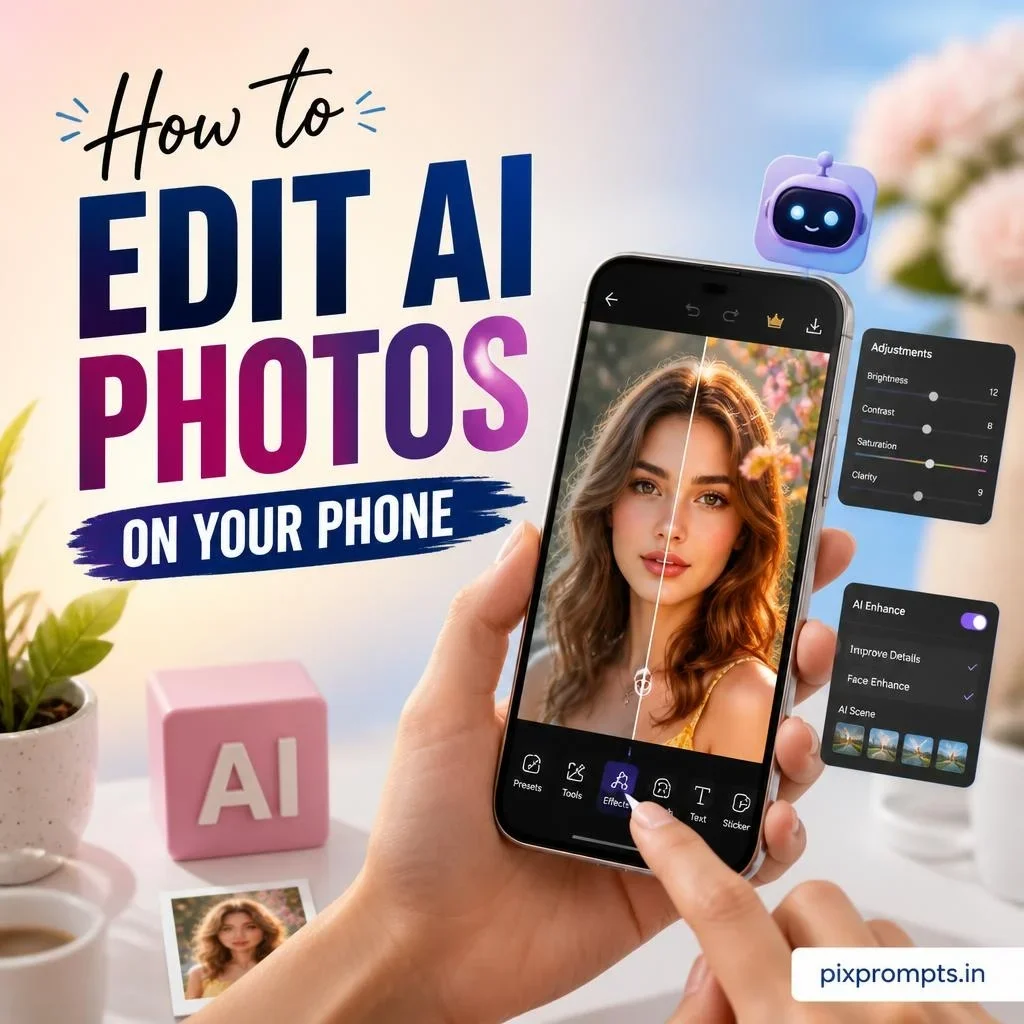
Most people in India create and share AI photos entirely on their phones. You do not need a laptop or expensive software to make polished AI edits. With an AI app, a free editing app and a few good habits, your phone becomes a complete creative studio.
This guide covers a full mobile workflow: taking the right photo, using AI apps on your phone, finishing edits with free tools and exporting for social media without losing quality.
Start With a Good Phone Photo
Clean your camera lens, use natural light near a window or outdoors in shade and hold the phone at eye level. Use portrait mode carefully, as strong background blur can confuse AI edits around hair. Take several shots and choose the sharpest.
AI Apps on Mobile
Gemini and ChatGPT both have mobile apps that support photo uploads and image generation. Other apps also offer AI features. Use official apps from trusted app stores and keep them updated for the latest features.
Typing long prompts on a phone can be tiring. Save your favourite prompts in a notes app and copy them when needed.
Finishing Touches With Free Apps
After generating, use free editors like Snapseed, Lightroom Mobile’s free features or your phone’s built-in editor to adjust brightness, contrast, warmth, crop and sharpen slightly. These small adjustments make AI images look finished.
Export and Share Smartly
Save the highest quality version. When sharing on WhatsApp, sending as a document can preserve quality. For Instagram, crop to recommended ratios and avoid re-saving images multiple times.
Example: A Five-Minute Mobile Edit
Take a selfie near a window, open the Gemini app, upload it and paste a saved background-change prompt. Review the result and ask for one correction, such as “make the light warmer”. Download the image, open it in Snapseed, crop to 4:5, lift shadows slightly and add a gentle vignette. Export and post. The whole process can take about five minutes once you are familiar with it.
Repeating this same workflow regularly makes it faster and more consistent.
Keeping Your Phone Organised
Create albums for originals, AI edits and final posts. Delete failed attempts regularly to save storage. An organised gallery makes it easy to find images for future posts or reels.
With these habits, your phone can comfortably handle everything from quick status edits to polished Instagram posts.
Mobile-Friendly Editing Prompts
Each prompt below is ready to copy. Replace the words in square brackets with your own details before you hit generate.
1. Quick background change
Keep me exactly the same. Change the background to a clean white wall with soft natural light. Realistic photo.
2. Phone portrait enhancement
Improve this phone photo naturally. Balance the lighting, soften harsh shadows, keep skin texture natural and do not change my face.
3. Instagram-ready edit
Keep my face the same. Give this photo a warm, soft aesthetic with gentle colours and a slightly faded look, suitable for an Instagram feed.
4. Fix portrait mode edges
Fix the blurry edges around my hair caused by portrait mode, making the hair edges natural while keeping the background softly blurred.
5. Low light rescue
Brighten this low-light phone photo naturally, reduce noise and keep colours realistic without changing the people.
6. Quick style transfer
Turn this photo into a soft pastel illustration while keeping my face recognisable.
A Complete Mobile AI Editing Workflow
- Take a clean photo: Natural light, clean lens, eye level.
- Open your AI app: Use Gemini, ChatGPT or another trusted app.
- Upload and paste a prompt: Use saved prompts from your notes.
- Refine with short messages: Fix issues one at a time.
- Finish in an editor: Adjust light, colour, crop and sharpness.
- Export and share: Save in high quality and share without heavy compression.
Privacy Points to Keep in Mind
Whenever you upload a personal photo to any AI tool, read the app’s privacy settings first. Most popular tools let you control whether your chats and uploads are saved in your history. Avoid uploading photos of other people, especially children, without their permission, and never share images that show documents, addresses or ID cards.
It is also a good habit to download your result and then delete the conversation if you do not want it stored. These small steps let you enjoy AI photo editing while keeping your personal data under your control.
Working Within Free Limits
Many AI image tools limit how many images you can create for free in a day. To make the most of your limit, write and check your prompt in a notes app before generating, use one clear photo instead of trying several at once and make small follow-up corrections rather than starting new generations from scratch.
If you run out, take a break and come back later. Fresh eyes often help you write a better prompt anyway.
Pro Tips for Better Results
- Keep a prompt library in your notes app for quick access.
- Use voice typing for long prompts.
- Turn off beauty filters in your camera app for natural results.
- Use grid lines in your camera for better composition.
- Back up important edits to cloud storage.
Common Mistakes to Avoid
Dirty camera lens
Smudges create hazy photos.
Heavy beauty filters
Filters confuse AI and look unnatural.
Over-editing after AI
Too many adjustments ruin natural looks.
Sharing compressed copies
Repeated sharing lowers quality.
Frequently Asked Questions
Can I do all AI editing on a phone?
Yes. Many creators work entirely on mobile.
Which free app is best for finishing edits?
Snapseed and built-in phone editors are popular free options.
Does phone storage matter?
High-quality images take space; back up regularly.
Can I use voice for prompts?
Many phones support voice typing, which can speed up prompt entry.
Is mobile data usage high?
Uploading and downloading images uses data; use Wi-Fi when possible.
Quick Checklist
Before you finish, run through this short checklist:
- Take a clean photo
- Open your AI app
- Upload and paste a prompt
- Refine with short messages
- Finish in an editor
- Export and share
Conclusion
Your phone is a powerful AI editing studio. Start with a clean, well-lit photo, use trusted AI apps, refine with short instructions, finish with free editors and share smartly. Professional-looking AI edits are now possible from the palm of your hand.
