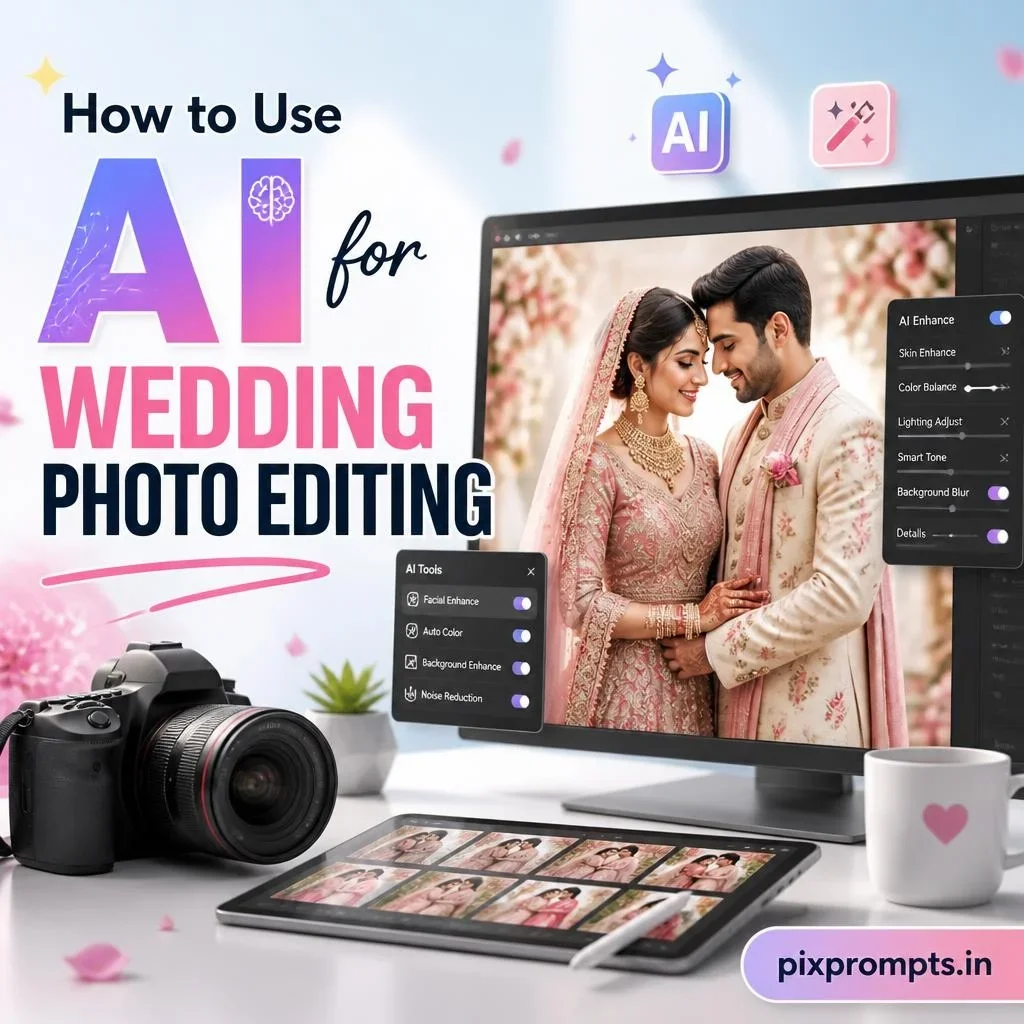
Wedding photos are among the most precious images a family owns. Yet even professional wedding photos sometimes have distracting backgrounds, uneven lighting, closed eyes or unwanted guests in the frame. Family members’ phone photos often have even more issues. AI tools can help fix these problems and create beautiful edits.
Because wedding photos carry deep emotional value, editing should be careful and respectful. This guide shows how to use AI for cleanup, colour grading, creative edits and album designs while keeping memories authentic.
Cleanup and Retouching
Common fixes include removing distracting objects, cleaning backgrounds, correcting lighting and gently improving clarity. AI can remove a stray chair, a light stand or an unwanted person in the background. Keep retouching subtle so the couple still looks like themselves.
Always keep original files safe. Wedding photos should be backed up in multiple places before any editing.
Colour Grading for Consistency
Wedding photos from different photographers and phones may have different colours. AI can help create a consistent warm, cinematic or pastel colour grade across selected images, making an album feel cohesive.
Creative Edits
Beyond fixes, AI can create artistic versions: watercolour wedding portraits, vintage film looks or illustrated invitation art. These make lovely gifts and keepsakes when used alongside the original photos.
Respect and Consent
Wedding photos include many people. Before making creative edits or sharing publicly, ensure the couple and family are comfortable. Avoid edits that change people’s appearance significantly.
Example: Fixing a Family Phone Photo
A cousin’s phone photo from the haldi ceremony is lovely, but there is a bright window behind the couple and a plastic chair in the frame. Ask the AI to remove the chair, balance the bright background and warm the colours slightly. Compare with the original to make sure faces and outfits are unchanged. A quick edit turns a casual snapshot into an album-worthy memory.
Do a few such edits for family members’ photos and share them as a small gift after the wedding.
Working With Professional Photographers
If you hired a photographer, ask before editing their images, as some contracts include terms about editing and credit. Many photographers are happy to help with specific requests themselves.
Wedding Photo Editing Prompts
Copy any prompt below, paste it into your favourite AI tool and change the details in brackets to match your own photo or idea.
1. Background cleanup
Remove the light stand and the stray chair from the background of this wedding photo, filling the area naturally. Keep the couple and all decorations exactly the same.
2. Lighting correction
Balance the lighting in this wedding photo, brightening the faces naturally and reducing harsh shadows, without changing any features or colours of the outfits.
3. Warm cinematic grade
Apply a warm cinematic colour grade to this wedding photo with soft golden tones and gentle contrast, keeping skin tones natural and outfits accurate.
4. Watercolour keepsake
Turn this wedding couple portrait into a soft watercolour painting with delicate pastel tones, both faces accurate, white paper edges, suitable for framing.
5. Album page design
Create an elegant wedding album page background with soft floral borders in blush and gold, space for three photos and a short caption.
6. Closed eyes fix
The bride's eyes are closed in this photo. Open her eyes naturally to match her appearance in the other uploaded photo, keeping everything else the same.
How to Edit Wedding Photos with AI
- Back up originals: Save copies in multiple places.
- Select photos to edit: Choose meaningful images with fixable issues.
- Clean up distractions: Remove unwanted objects carefully.
- Correct lighting and colour: Apply consistent grading.
- Create keepsake edits: Watercolours, vintage looks or album designs.
- Review with the couple: Confirm they are happy before sharing or printing.
Privacy Points to Keep in Mind
Whenever you upload a personal photo to any AI tool, read the app’s privacy settings first. Most popular tools let you control whether your chats and uploads are saved in your history. Avoid uploading photos of other people, especially children, without their permission, and never share images that show documents, addresses or ID cards.
It is also a good habit to download your result and then delete the conversation if you do not want it stored. These small steps let you enjoy AI photo editing while keeping your personal data under your control.
A Note on Honesty and Labels
As AI images become more realistic, being open about how an image was made builds trust. You do not need to label every playful edit, but when an image could be mistaken for a real event, place or achievement, a short note such as “AI edit” in the caption keeps things clear. Some platforms also provide their own AI content labels, so check the options when you upload.
Honesty protects your reputation. Followers forgive a stylised edit; they rarely forgive feeling misled.
Pro Tips for Better Results
- Edit a small test set before processing many photos.
- Keep skin tones natural across all edits.
- Use consistent grading for album cohesion.
- Print keepsake edits as gifts for parents.
- Keep edits subtle for authenticity.
Common Mistakes to Avoid
Over-retouching faces
Changing appearance can feel wrong to the couple.
Editing without backups
Originals are irreplaceable.
Inconsistent colours
Mixed grading makes albums look disjointed.
Sharing without consent
Respect privacy of guests and family.
Frequently Asked Questions
Can AI replace a wedding photographer’s editing?
It can help with fixes and creativity, but professional editors bring expertise and consistency.
Can AI fix blurry wedding photos?
It can improve clarity somewhat, but severely blurred photos have limits.
Is it safe to upload wedding photos?
Review privacy settings and avoid sharing sensitive images publicly.
Can I create wedding invitations with AI?
Yes, using illustrated couple portraits and elegant backgrounds.
How do I keep edits natural?
Make small changes and compare with originals.
Quick Checklist
Before you finish, run through this short checklist:
- Back up originals
- Select photos to edit
- Clean up distractions
- Correct lighting and colour
- Create keepsake edits
- Review with the couple
Conclusion
AI can help make wedding photos even more beautiful by cleaning distractions, correcting light, creating consistent colours and producing creative keepsakes. Back up originals, edit subtly and respect everyone’s comfort. Your wedding memories deserve care as much as creativity.
